The DNS shield: AI visibility for every device
You can’t install a sensor on a smart TV or a games console. You can see what they look up. How GreyArm’s DNS shield works, how to set it up, and what it can and cannot see.
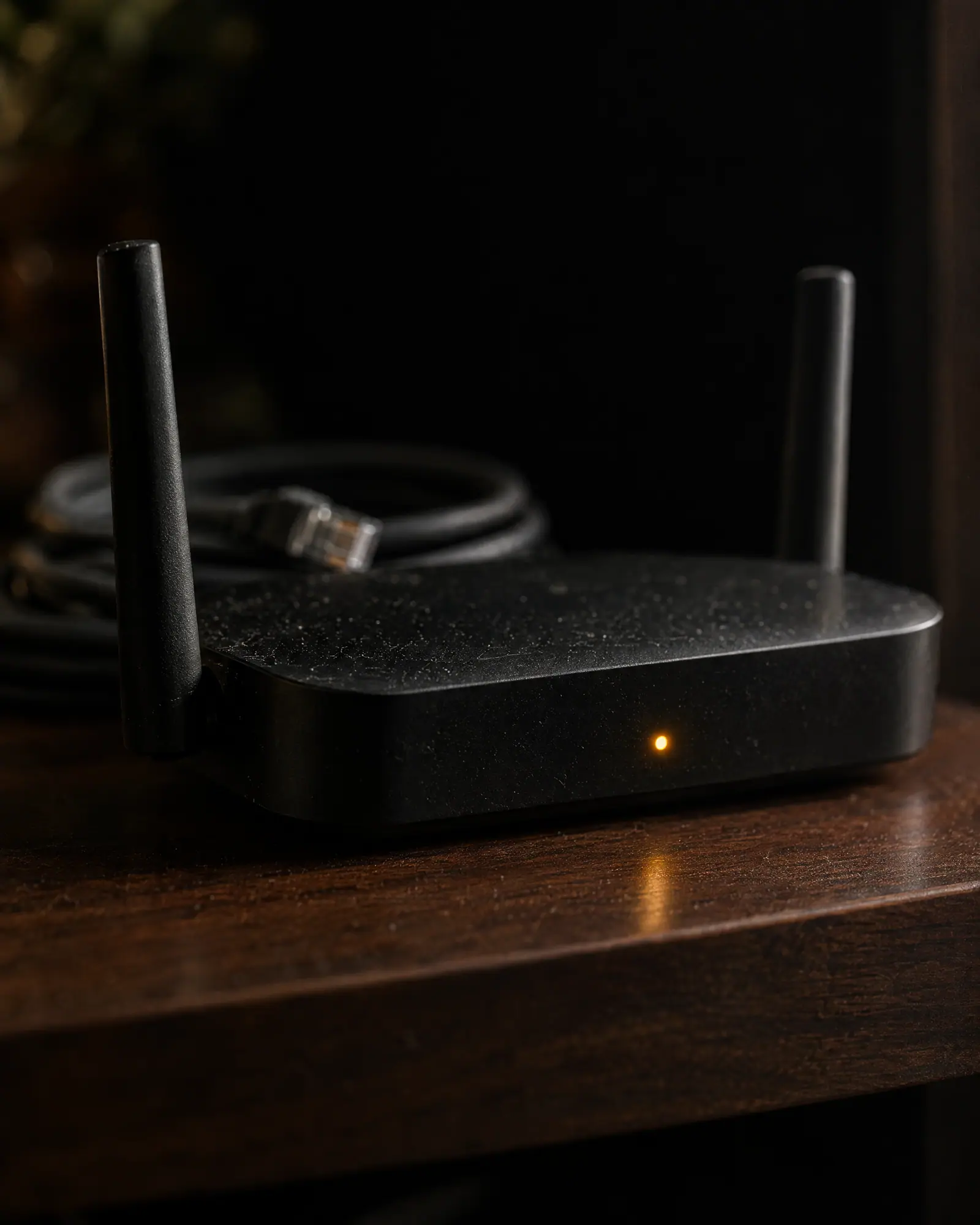
The GreyArm sensor sees a great deal on computers it runs on. But a typical home has many devices you cannot install anything on: tablets, phones, consoles, smart TVs, speakers, the doorbell. Several of them now include AI features. The DNS shield exists to give you a view across all of them, using one thing they all have in common.
Every connection starts with a name
Before a device connects to a service, it almost always asks a DNS resolver to translate a name, such as a model provider’s API hostname, into an IP address. Normally that question goes to your router, which forwards it to your internet provider or a public resolver. Nobody in the house sees it.
The DNS shield is a small resolver that runs inside the GreyArm desktop app on a computer in your home. When devices use it, it forwards each lookup to your normal upstream resolver and passes the answer back, so browsing works as before. Along the way, it checks each name against GreyArm’s catalogue of AI services. Lookups for AI services are recorded with the time and the address of the device that asked.
What you get
- A per-device view of AI use. Which devices look up AI services, which services, and when.
- New-device awareness. When a device that never used AI before starts doing so, you can see it.
- Blocking where you want it. You can block specific AI services. A blocked lookup receives a "this name does not exist" answer, so the app cannot reach the service, and the event is recorded as a finding.
- No software on the devices. Nothing is installed on the tablet, console or TV.
Setting it up
1. Choose the computer
Pick a computer that is on most of the time and connected to your home network, ideally by cable. Install GreyArm and turn on the DNS shield in its settings. The app shows the address devices should use.
2. Point devices at it
The most convenient option is your router. In its DHCP or LAN settings, set the DNS server handed to devices to the shield computer’s address. Devices pick it up the next time they reconnect. If your router does not allow changing that setting, you can set the DNS server manually on individual devices you care about most.
3. Give the computer a fixed address
Reserve the shield computer’s address in your router’s DHCP settings so it does not change. Otherwise devices may end up pointing at the wrong place.
4. Keep a fallback in mind
If the shield computer is switched off, devices pointed only at it cannot resolve names. Some people configure their router’s secondary DNS as a public resolver for resilience; be aware that devices may then use the secondary at times, which reduces visibility.
A worked example
Imagine a household with two laptops, a family tablet, a games console and a smart TV. The laptops run the GreyArm sensor; everything else does not. After pointing the router’s DNS setting at the shield computer, the picture fills in over an evening. The tablet looks up a homework helper’s AI backend after school. The console never looks up anything AI-related. The smart TV, unexpectedly, resolves the hostname of a voice assistant service whenever its remote’s microphone button is pressed.
None of that is alarming in itself. What changes is that the household now knows. If the tablet starts talking to a companion-chat service at midnight, that shows up as a new pattern on a device that previously had a predictable routine, and it can be blocked for that device while everyone talks about it.
Choosing what to block
Blocking is a blunt tool, so it works best when it is specific. A few principles help:
- Block services, not categories, at first. Blocking one companion app’s backend is less disruptive than blocking every AI service, which would also break features in ordinary apps you rely on.
- Expect apps to show an error. A blocked lookup looks to the app like the service is unreachable. Explaining that to the person using the device avoids confusion.
- Revisit blocks. Services change hostnames and apps change providers. Review the list now and then, and remove rules nobody needs.
What it can and cannot see
DNS is a powerful vantage point, but it has limits worth being honest about:
- It sees names, not content. The shield knows a device looked up an AI service. It does not see what was said.
- Encrypted DNS can bypass it. Some browsers and operating systems can use DNS over HTTPS or DNS over TLS to a provider of their choosing. When that is active, those lookups do not reach the shield. Many offer a setting to disable it, and some respect network-level signals.
- VPNs and hard-coded resolvers bypass it. A device on a VPN, or an app that ignores the network’s DNS server, is outside the shield’s view.
- Caching hides repeats. Devices cache answers, so the shield sees the first lookup in a while, not every request.
- On-device AI is invisible. Features that run entirely on the device do not look anything up.
Those limits are why the shield complements the sensor rather than replacing it. On computers, the sensor sees processes and connections directly. For everything else, DNS is the best practical view.
Privacy for the people in your house
The shield only records lookups that match AI services. Other browsing is forwarded without being logged. If you use it in a family, it is worth explaining what it does. A tool that shows which devices use AI is a good prompt for a conversation, and works better as one than as a secret.
In short
- Every device asks DNS before it connects; the shield answers those questions.
- AI lookups are logged per device and can be blocked per service.
- Set it via your router’s DHCP DNS setting, with a fixed address for the shield computer.
- Encrypted DNS, VPNs and on-device AI are outside its view.
Last updated October 23, 2026
Keep reading
All articles
A parent’s guide to AI apps on kids’ tablets
AI shows up in kids’ apps in more places than the obvious chatbot. A calm, practical guide to finding it, understanding what it does with what your child types, and setting sensible limits.
Is your local LLM open to the whole Wi-Fi?
Running models locally is a good privacy choice, until the runtime starts listening on every network interface. How exposure happens, how to check for it, and how to fix it in a few minutes.

How GreyArm detects agents without reading your data
GreyArm finds AI agents by looking at behaviour (processes, connections, lookups and ports) rather than content. A tour of what the sensor collects, what it deliberately ignores, and how findings are scored.