Is your local LLM open to the whole Wi-Fi?
Running models locally is a good privacy choice, until the runtime starts listening on every network interface. How exposure happens, how to check for it, and how to fix it in a few minutes.
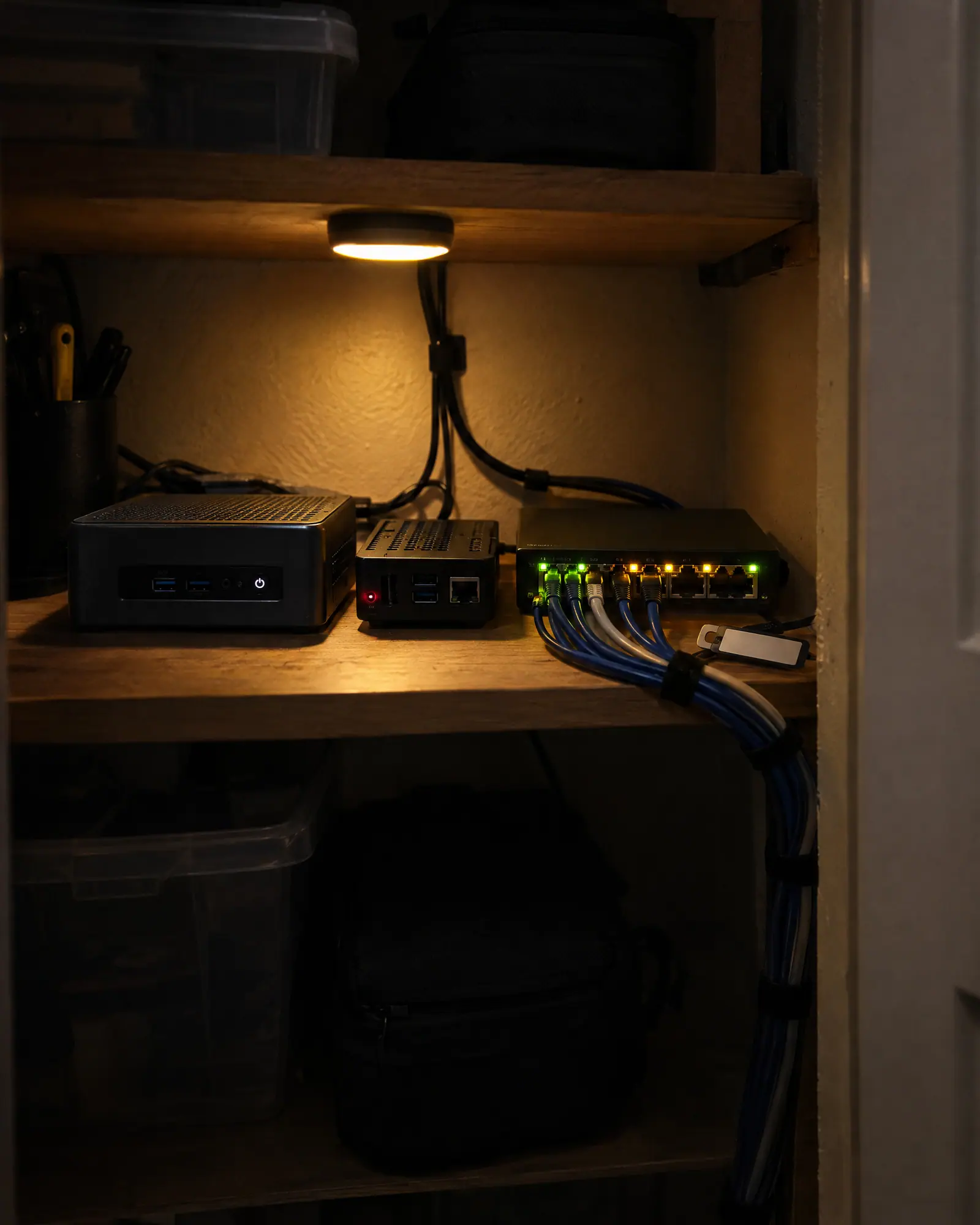
Running a language model on your own hardware is one of the better privacy decisions you can make with AI. Your prompts never leave the machine, there is no account, and nothing is logged by a third party. Tools such as Ollama, LM Studio and llama.cpp have made it straightforward on an ordinary laptop or a small home server.
There is one detail that is easy to miss: these runtimes are servers. They expose an HTTP API that other programs use to send prompts. Where that API listens decides who can use it. On the default settings it is usually just your own machine. A single setting change, often made to get a phone app or a second computer working, can open it to everything on your Wi-Fi.
Loopback versus every interface
A server that listens on 127.0.0.1 (or localhost) only accepts connections from the same computer. A server that listens on 0.0.0.0 accepts connections on every network interface the machine has: your home Wi-Fi, a wired network, a VPN, and sometimes a hotel or café network when you take the laptop out.
Common defaults, as documented by each project at the time of writing:
- Ollama listens on
127.0.0.1:11434. Setting theOLLAMA_HOSTenvironment variable to0.0.0.0makes it listen on all interfaces. - LM Studio runs its local server on port
1234and offers an option to serve on the local network. - llama.cpp’s built-in server binds to the host and port you pass it, defaulting to loopback on port
8080; passing--host 0.0.0.0exposes it.
Defaults change between versions, so treat this as a starting point and check your own setup.
Why exposure is a problem
These APIs are designed for convenience on a trusted machine, and most of them have no authentication by default. Anyone who can reach the port can typically:
- Use your hardware. Every request consumes your GPU, CPU and electricity, and slows down your own work.
- Manage models. Some runtimes expose endpoints to download, copy or delete models, not just run them.
- See what is installed. Model lists reveal what you use, which can be more personal than it sounds.
- Reach anything the model is wired to. If you have connected the runtime to tools or documents, an exposed endpoint may give others a path to those too.
On a home network, "anyone" includes guests on your Wi-Fi, every smart TV and plug, and any device that has been compromised. On public networks it includes strangers. And if your router forwards ports, or you have enabled UPnP and something requested a mapping, it can include the internet.
How to check your own machine
You can find out in a minute what is listening and where.
Windows
netstat -ano | findstr LISTENINGLook for ports such as 11434, 1234 or 8080. A local address of 0.0.0.0 or [::] means all interfaces; 127.0.0.1 means loopback only. The last column is the process ID, which you can match in Task Manager.
macOS
lsof -nP -iTCP -sTCP:LISTENEntries shown as *:11434 are listening on every interface.
Linux
ss -ltnpAgain, 0.0.0.0, * or [::] in the local address column means the service is reachable from the network.
To confirm from the outside, try the API from another device on the same network, for example by opening http://<your-computer-ip>:11434 in a phone browser. If it answers, so will everyone else’s.
How to fix it
Bind to loopback if you don’t need remote access
Remove any OLLAMA_HOST=0.0.0.0 setting, turn off "serve on local network" in LM Studio, or start llama.cpp with --host 127.0.0.1. Restart the runtime and run the check again.
If you do need other devices to connect
- Restrict by firewall. Allow the port only from specific addresses, such as your phone or a second computer, and deny it from everything else. Make sure the rule does not apply on public network profiles.
- Put a proxy in front. A reverse proxy can add authentication and TLS to an API that has neither.
- Use a private overlay network. Mesh VPNs let your own devices reach each other without exposing a port to the local network at all.
Check the router
Review port forwarding rules and the UPnP mapping table in your router’s admin page. Disable UPnP if you don’t rely on it. No local model runtime should be forwarded to the internet without authentication in front of it.
Laptops travel
A setting that seems harmless at home looks different on the road. A laptop with a runtime listening on every interface exposes it on every network it joins: the office, a hotel, a train. Operating system firewalls distinguish between private and public network profiles for exactly this reason. If you allowed the runtime through the firewall when a prompt appeared, check which profiles that rule covers; "private networks only" is the safer answer for anything that has no authentication of its own.
Don’t forget the other machines
The laptop you are reading this on is easy to check. The mini PC in the cupboard, a family member’s gaming rig with a model installed "to try it", or a home server set up a year ago are easy to forget, and they are often the ones configured to listen everywhere because that was the quickest way to get something working.
GreyArm reports local LLM runtimes that are listening on a network-reachable address as a specific finding, with the process, the address and the port, on every computer running the sensor. The DNS shield adds a view from the network side, so you can also see which devices on the Wi-Fi are talking to AI services at all.
Summary
- Local runtimes are servers; where they listen decides who can use them.
- Loopback (
127.0.0.1) is private;0.0.0.0is everyone on the network. - Most runtime APIs have no authentication by default.
- Check with
netstat,lsoforss, and from a second device. - Bind to loopback, or restrict by firewall, proxy or private overlay network.
Last updated October 23, 2026
Keep reading
All articles
A parent’s guide to AI apps on kids’ tablets
AI shows up in kids’ apps in more places than the obvious chatbot. A calm, practical guide to finding it, understanding what it does with what your child types, and setting sensible limits.

What an AI agent actually does on your laptop
Chatbots answer. Agents act: they read files, run commands and call services on your behalf. Here is what that looks like from the operating system’s point of view, and what is worth keeping an eye on.

How GreyArm detects agents without reading your data
GreyArm finds AI agents by looking at behaviour (processes, connections, lookups and ports) rather than content. A tour of what the sensor collects, what it deliberately ignores, and how findings are scored.